Scrum poker in Google Meet: how to run it on the call.
On a video call, the first number wins. Someone unmutes, says "feels like a five to me", and from then on everyone is estimating against that five. This guide is about keeping a Google Meet™ call from doing that: the habits that work against you, a run sheet for the facilitator, who joins from which device, and what to do when the call wobbles.
It isn't an install guide. The Google Meet page covers that in three steps.
Why a call makes estimating harder
Scrum poker depends on people making up their minds separately, and a call is built for the opposite. Most teams start with one of these:
| What teams try | What goes wrong |
|---|---|
| Saying numbers in turn | The first voice anchors the rest, and the last person just agrees |
| Typing in Meet's chat on a count of three | Fast typists show their number first, and the slow ones see it before they send |
| Holding fingers up to the camera | Cameras are off or tiles are off-screen, a hand has no 13, and nothing is recorded |
| A tool in another tab, with one person sharing | Attention splits between two windows, and someone has to keep the share going |
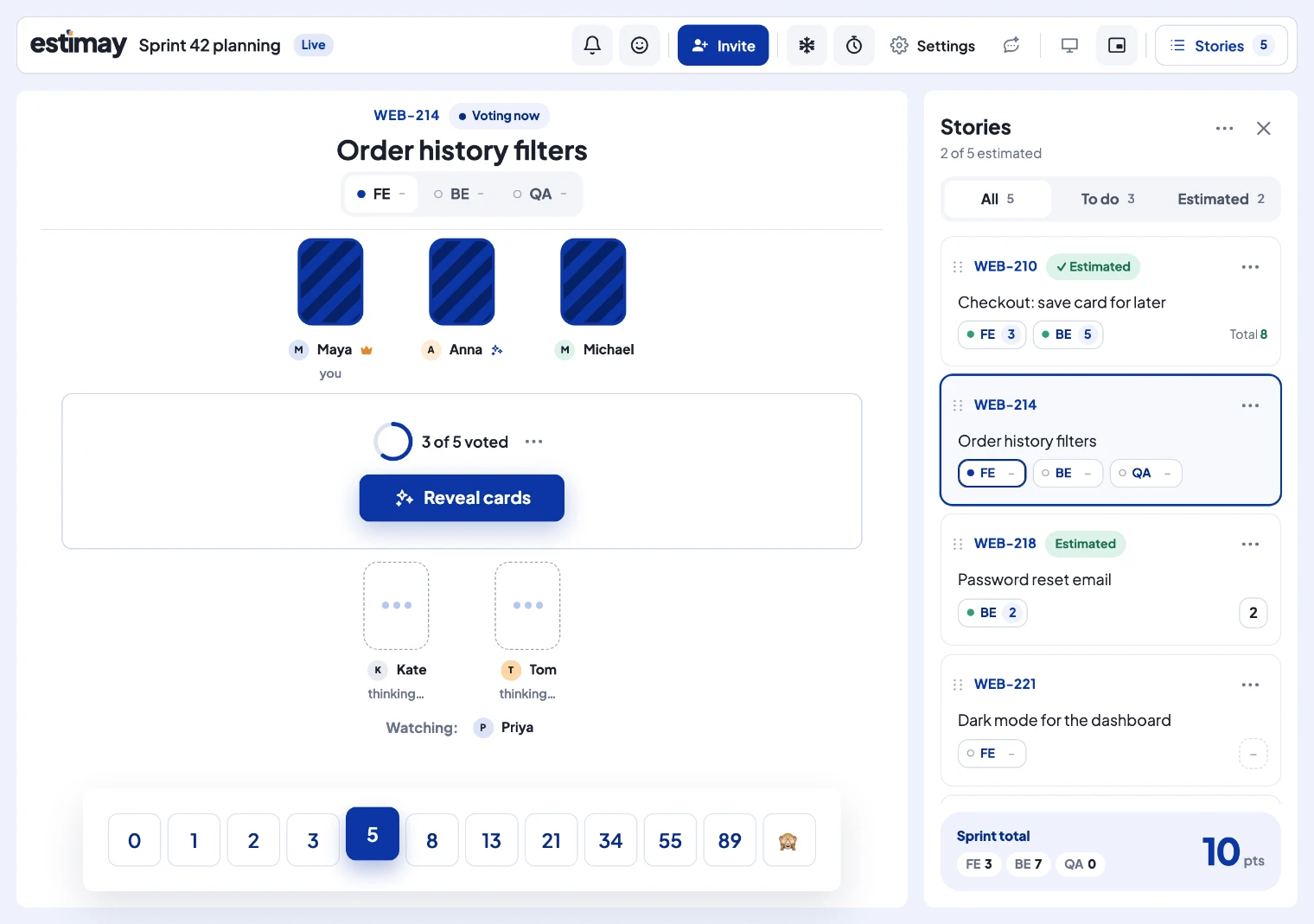
A room on Meet's main stage removes the cause rather than asking people to be disciplined. Everyone picks a card on their own screen, so nobody has to share theirs. The table shows who has voted, never what. Votes stay on the server until the reveal, then all the cards turn over together after a short countdown. Nobody can anchor anyone, because no card shows until the reveal.
Ten minutes before the call
- Keep the stories in a CSV, not in a room. Meet's room belongs to the meeting: it is made when someone starts the activity in that call, so a room you set up earlier in a browser isn't the one Meet opens. The Stories panel imports up to 200 stories from a CSV file, with a preview, in a few seconds.
- Decide who presses Start. That person names the room and becomes its host, so it should be whoever runs the session, not whoever happens to open Activities first.
- Put the install link in the invite. Meet sends anyone without the add-on off to install it when they try to join. One line with the Marketplace link saves those minutes from the start of your meeting. In a work or school account an admin may have to allow it, and that is better found out the day before.
- Say who votes. A product owner who doesn't build the work can switch on spectator mode, so they watch every round and the "voted" count leaves them out.
The run sheet
Once the room is open, make a second person a facilitator in Settings: if your connection drops, they can carry on. Then say the one rule out loud: no numbers until the cards turn over. For each story, roughly three minutes:
- Put it on the table and read the title aloud. Drop the ticket's link in Meet's chat for anyone who wants the detail.
- Ask for questions, not opinions. Use Meet's raised hand so one person speaks at a time. "Is the export in scope?" is a question. "That sounds huge" is a vote, and it anchors just as a number does, so stop it kindly.
- Vote in silence. The silence feels longer on a call than it is. Don't fill it: watch the "x of y voted" count, and name nobody until the slowest has had a fair moment.
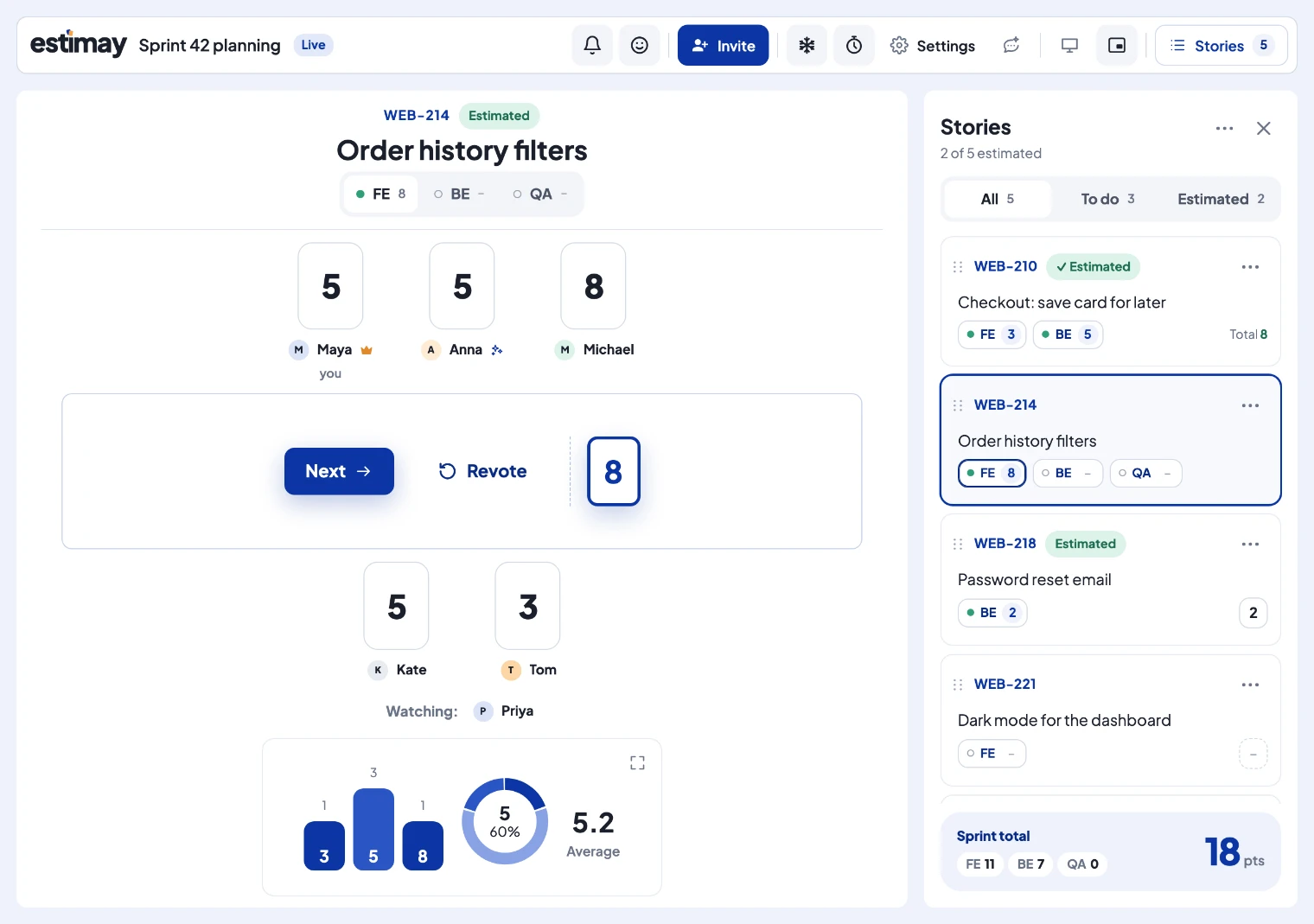
- Reveal, then hear the ends first. Ask the lowest and the highest voter to unmute before anyone else, since they usually have the assumption everyone else is missing. The guide to reading a reveal covers the common shapes.
- Put a clock on the talk. The discussion timer runs on everyone's screen, so you don't have to be the one interrupting. Two minutes is usually enough; more on that in timeboxing sprint planning.
- Revote or settle, and move on. The reveal fills in a final estimate from the votes; click that card to pick another if the team agreed on something else. Revote once if the talk changed something. If it still splits, the story probably isn't ready, so clear the estimate and send it back rather than voting until someone gives in.
If you'd rather not be the one pressing Reveal, turn on auto-reveal in Settings: the cards turn over once every voter present has voted.
Who joins from what
Add-ons run in Meet on a computer's browser, not in the phone apps, and not every call is a tidy set of laptops. Everyone below reaches the same table:
| Who | How they join |
|---|---|
| On a computer, add-on installed | Meet's invitation to the activity, then they type the name others will see |
| On a computer, no add-on | Meet directs them to install it; in a hurry, send the room's link instead |
| Their admin hasn't allowed it | The room's link, from Invite, pasted in Meet's chat, and a word with the admin later |
| On a phone | The link or QR code from Invite opens the room in the phone's browser |
| Someone from another company | The link is the simple route: it needs no install and no sign-up |
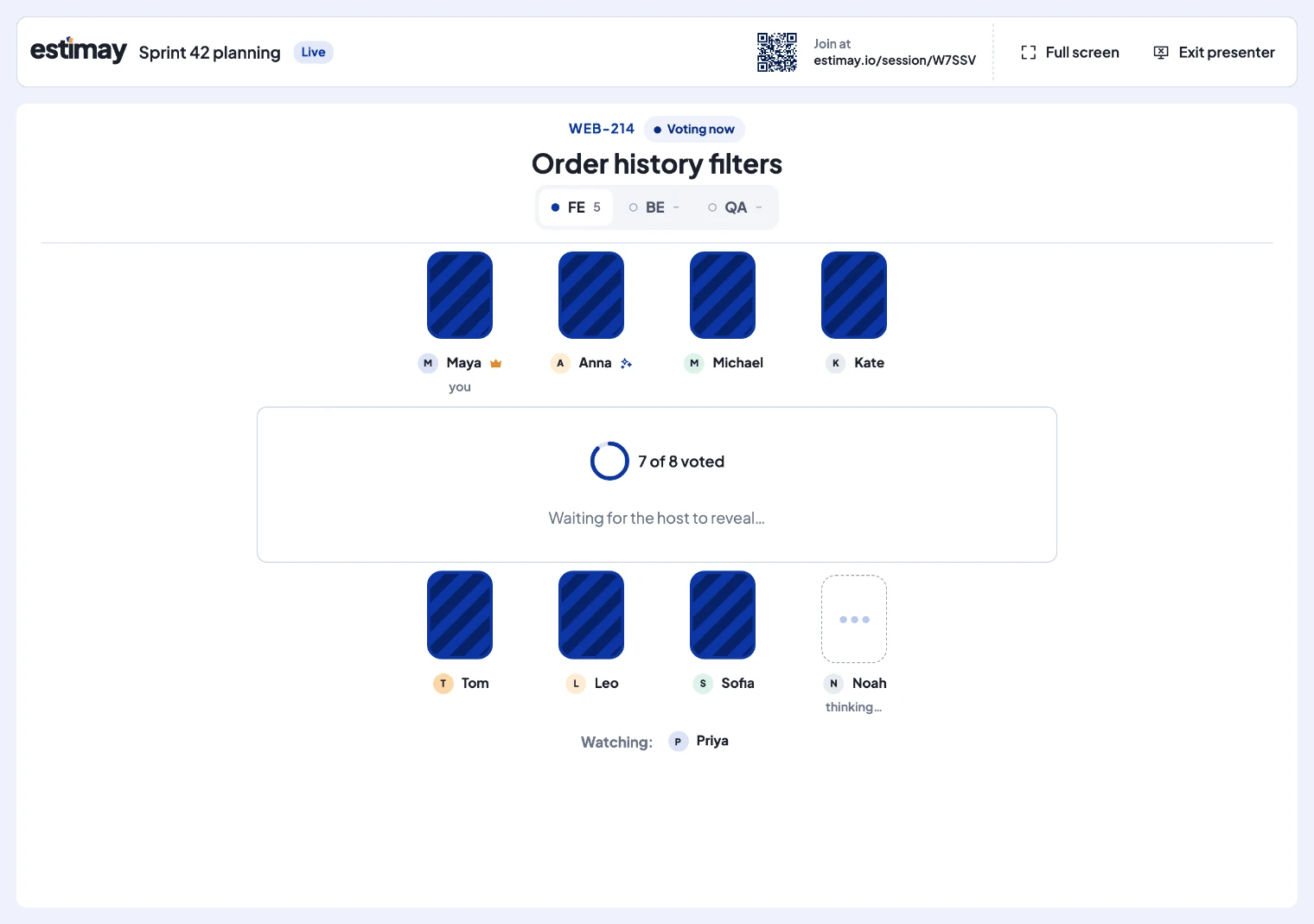
| A meeting room on one big screen | Open the link on the room's computer and press Present for a read-only view with a QR code; people vote on their phones |
If Meet says the meeting's settings don't allow activities, make a room at estimay.io/new and paste its link in Meet's chat. You lose the main stage, not the game.
When the call wobbles
- Someone drops. Their seat stays, marked offline, and they come back to the same table. Auto-reveal only waits for people who are there.
- The host drops. A facilitator keeps the round going. Only the host's own jobs, such as removing people or ending the room, wait until they're back.
- Someone joins late. They land in the meeting's room like everyone else, with no link to find, and can vote on whatever is on the table.
- The screen says "The room is being set up…" and stays there. Whoever pressed Start hasn't created the room yet, or has walked away. Anyone waiting can press "Create the room yourself".
- A second person presses Start. Meet refuses, and Estimay tells them it's already open in this meeting. They join from Meet's invitation instead.
- A number slips out early. Don't reveal on top of it. Restart the round from the "⋯" beside the "voted" count, ask people to pick again for their own reasons, and carry on. It costs twenty seconds.
- Quiet people stay quiet. A hidden card gives them a voice, but the talk after it doesn't. Ask by name when their card sits at either end: cameras off or not, they just told you they see it differently.
After the call
Get the estimates out before you hang up: the room downloads them as a CSV, and the "Session ended" page offers the same file after the host ends it. Ending the room deletes it at once; otherwise a live room is deleted 7 days after it was last used, so it's no place to keep them. Then take the stories you sent back and give each an owner while people are still on the call to say yes.
Questions teams ask
Does everyone have to install the add-on?
To join from Meet's invitation, yes: each person does it once. Anyone who can't or would rather not can vote from the room's link in a browser, with the same cards, timer and results.
Is it a browser extension?
No. It's a Meet add-on, installed from the Google Workspace Marketplace, and the room opens inside the call rather than in a tab beside it. There is no extension to add.
Can Estimay hear or see the call?
No. The add-on asks Google for no data: no audio, video, chat, email or list of who is in the call. To bring a meeting to its room it keeps a one-way hash of the meeting's ID. The privacy policy has the details.
Do we need the whole call for this?
Often not. Make an async room at estimay.io/new and share its link, so people vote during the day in their own time. Then book a short Meet for only the stories that split, with the room in a browser tab and on a shared screen.
Try it on your next call. Add Estimay to Google Meet, then open Activities in a call and press Start for everyone. No Meet handy? Create a free room in your browser and paste the link in the chat.